

Connecting Google Antigravity to the Splunk MCP server for governed AI agent access
AI agents are only as useful as the context they can reach. If your organization uses the Splunk Cloud Platform for log analytics or SIEM use cases, much of that context already lives in the Splunk platform. The Splunk MCP Server exposes that data to agents through the Model Context Protocol (MCP), and Google Antigravity includes a built-in Splunk MCP connector, so you can give Antigravity agents governed access to query data in the Splunk platform.
As of Splunk MCP Server 2.0, the server exposes SPL search and data discovery, alert investigation, saved searches, Splunk Observability Cloud Application Performance Monitoring (APM), metrics, and trace capabilities, and a number of other tools. Administrators keep control over which tools are exposed, along with authentication, role-based access control (RBAC), guardrails, and workload management.
This article shows you how to create a Splunk OAuth client, configure the Splunk MCP Server in Antigravity, and complete the OAuth handshake. It finishes with example prompts that show what the agent can do after it's connected.
Prerequisites
- Splunk Cloud Platform version 10.6 or later. OAuth 2.1 support for the Splunk MCP Server is available starting with this version, and the MCP feature is enabled by default.
- An administrator account in the Splunk platform to create an OAuth client.
- A user account in the Splunk platform with permissions to the indexes and tools you want the agent to use. The agent acts with the permissions of the user who authenticates.
- Google Antigravity installed.
How to use Splunk software for this use case
Setup has three parts, followed by a quick validation check:
- Create a Splunk OAuth client
- Configure the Splunk MCP Server in Antigravity
- Authenticate Antigravity to the Splunk platform
Create a Splunk OAuth client
- Log in to Splunk Web as an administrator.
- Select Settings > Authentication methods.
- Under OAuth Configurations, click Splunk OAuth Clients.

- Click Create Client.
- In Client Name, enter a descriptive name, such as
antigravity. - In Redirect URIs, enter
https://antigravity.google/oauth-callback. - Click Save.

- On the Review New Splunk OAuth Client page, copy the Client ID and Client secret and store them securely. You'll need them in the next section.
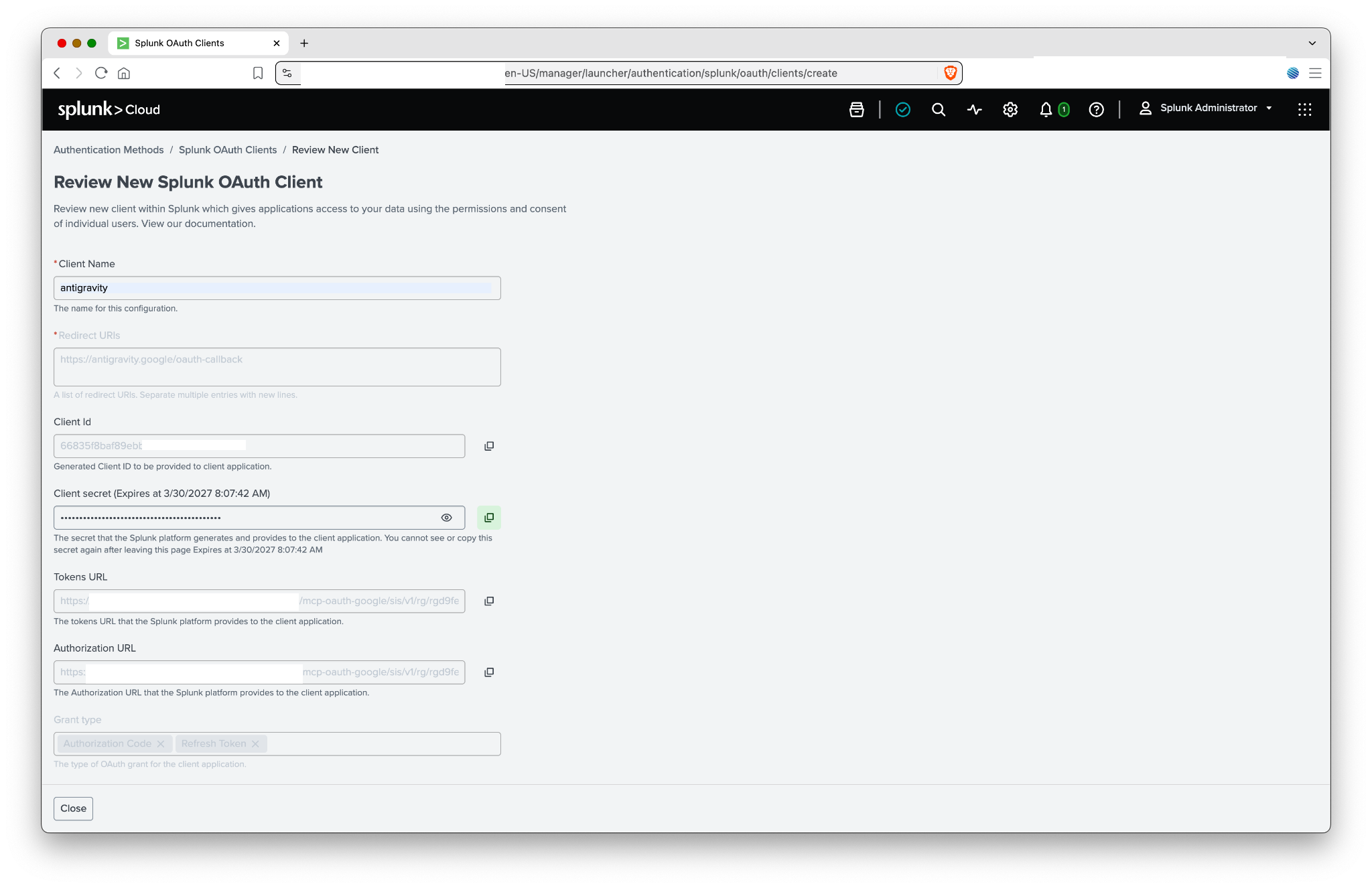
The client secret is only shown once. You can't view or copy it again after leaving this page. The secret also has an expiration date, shown next to the field. Plan to rotate it before it expires, or the Antigravity connection stops working.
Configure the Splunk MCP Server in Antigravity
- In Antigravity, select Settings > Customizations.
- In Installed MCP Servers, click Add MCP.
- Search for
Splunkand click Add. Return to the Customizations page, where thesplunkserver now appears under Installed MCP Servers, with anAuthentication failed: No bearer token providederror expected at this stage because you haven't configured credentials yet. - Click Open MCP Config. The
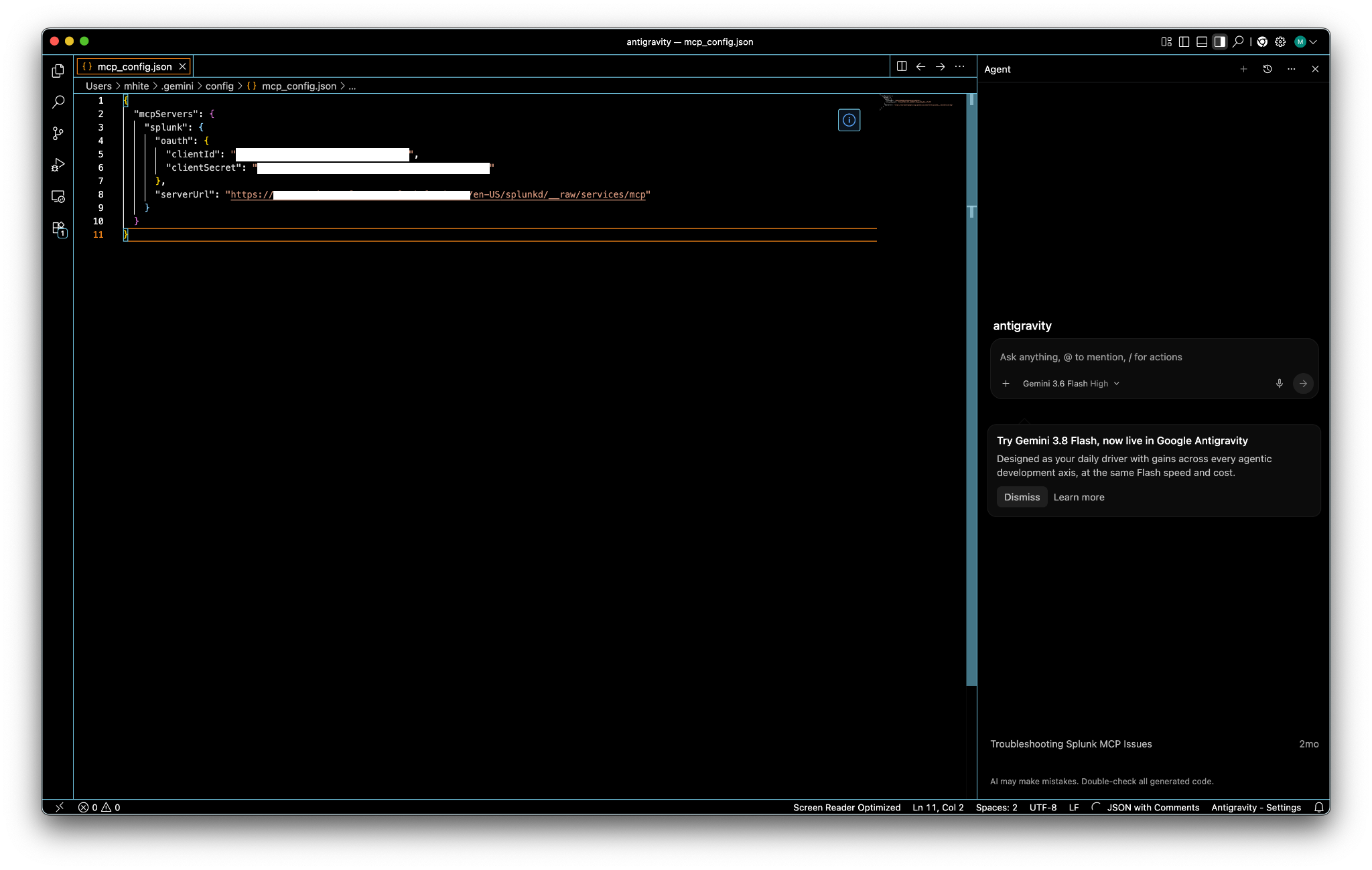
mcp_config.jsonfile opens in an editor and contains a stub entry for the Splunk MCP Server. See Antigravity's MCP documentation for the full configuration reference; this file lives at~/.gemini/config/mcp_config.json.
-
Add an
oauthsection to thesplunkentry and set the following values:clientId: The client ID from the Splunk OAuth client.clientSecret: The client secret from the Splunk OAuth client.serverUrl: The MCP endpoint for your Splunk platform deployment, in the formathttps://<SPLUNK_HOST>/en-US/splunkd/__raw/services/mcp.
The Splunk MCP Server doesn't support dynamic client registration, so you supply the client ID and secret manually rather than letting Antigravity register automatically. Antigravity restricts the OAuth scopes automatically during the token exchange, so there's no separate scopes field to set in this configuration.
{
  "mcpServers": {
    "splunk": {
      "oauth": {
        "clientId": "<CLIENT_ID>",
        "clientSecret": "<CLIENT_SECRET>"
      },
      "serverUrl": "https://<SPLUNK_HOST>.splunkcloud.com/en-US/splunkd/__raw/services/mcp"
    }
  }
}
- Save the file.
The mcp_config.json file contains your client secret in plain text. Don't commit it to source control or share it.
Authenticate Antigravity to the Splunk platform
- Select Settings > Customizations.
- Click Refresh. An Authenticate button appears next to the
splunkserver. - Click Authenticate.

- A browser window opens to the Splunk platform login page. Log in with the Splunk platform account the agent should act as.

- After you authenticate, the OAuth handshake completes and Antigravity displays an authorization code. Click Copy to Clipboard.

- Select Settings > Customizations in Antigravity.
- Paste the code into the field below the
splunkserver.
- Click Submit.
Validate the connection
The splunk server now shows a green status indicator, a Sign out button, and the number of tools enabled. Expand the tool list to review which Splunk MCP tools the agent can use.

To confirm that the agent can reach your data, open the Antigravity agent panel and ask a simple question, such as What indexes do I have access to in Splunk?
Antigravity stores the resulting tokens locally and refreshes them automatically, so you shouldn't need to repeat this flow unless the client secret is rotated or the token is revoked.
Next steps
Now that the agent is connected, try prompts at increasing levels of complexity.
Querying your data: Start with a direct question, such as "Show me authentication failures from external IPs in the last hour." The agent discovers the relevant data, writes the SPL, runs the search, and interprets the results.
Investigating an issue: Ask the agent to explain what's happening in your environment, such as "Why are customers experiencing elevated checkout errors?" The agent can use the Splunk MCP Server to find the relevant data, search logs and traces, examine related infrastructure and application information, correlate time windows, and form a hypothesis.
Using data in a larger workflow: MCP is most useful when an agent can combine data from several systems in a multi-step workflow. You can describe these workflows in an agent skill so they're loaded into the Antigravity agent's context.
For example, suppose the agent has these MCP servers enabled:
- Splunk MCP Server
- GitHub
- Jira or ServiceNow
- Slack
- Confluence
- Google Cloud
- An internal deployment system
With a workflow skill and these servers, the agent can reason across all of these systems with a prompt such as "Checkout latency increased after yesterday's deployment. Determine whether the deployment is likely related, identify the owning team, check whether this has happened before, summarize the evidence, and prepare an incident ticket."
The agent acts with the permissions of the authenticated user in the Splunk platform. Use a role scoped to the indexes and tools the agent actually needs and use the Splunk MCP Server administrative controls to limit which tools are exposed.
Additional resources
These resources might help you understand and implement this guidance:
- Splunkbase: Splunk MCP Server
- Splunk Help: Splunk MCP Server documentation
- Splunk Help: Splunk MCP Server tools reference
- Splunk Help: OAuth for MCP Server
- Splunk Help: Connect Claude to Splunk MCP Server
- Splunk: Model Context Protocol product page
- Splunk Lantern Article: Getting started with the Splunk MCP server
- Google: Google Antigravity
- Google Antigravity Docs: MCP configuration