

Using the Performance Insights for Splunk app: Diagnoses
Diagnoses
This section provides detailed explanations of the information available within the PerfInsights app that you can use to pinpoint and analyze performance issues.
Performance Trend
The Performance Trend section is a good starting point to get a sense of system activity, though it is often too high-level to determine the root cause of any issue.
Event Ingestion Volume
By default, this chart shows ingestion volume over the past week, grouped by day. Knowing when and how much data flows into your system allows for proper sizing and tuning to handle peak load. You should investigate spikes or troughs in this chart.
Spikes: When looking at a long time range, aggregated over a small number of groupings, look for groups that deviate. For example, if one day is significantly larger than others in a week's data, narrow in on that day. Spikes can cause performance problems if resources are already running close to capacity.
An example of a spike in event ingestion volume per day is shown below. An increase in ingestion rate will likely cause performance changes elsewhere in the system.

If you see spikes, first ensure the data is expected. If it is expected and you are experiencing issues starting at that point, determine if the incoming data can be reduced or broken into smaller chunks spread over longer time periods.
Troughs: Similar to spikes, troughs can indicate an unexpected change in data flow. Troughs are unlikely to cause performance issues but should be investigated to ensure data is not missing.
Average Search Runtimes
By default, these charts show average search times over the past week, grouped by day. Search load will likely have periods where load and type are somewhat consistent, and in those periods, average search times should also be consistent.
You should investigate any gradual increases in search runtimes. An example of an increase in scheduled search runtime is shown in the image below. Over long periods, the charts should remain flat, so upward trends indicate a potential problem.

When search runtimes increase over time, use the Search metrics section below to determine which searches are taking longer, and act accordingly. If all searches are taking longer, look for increases in search concurrency (detailed in the Search metrics section) or exhaustion of resources (detailed in the Resource monitoring section).
Given consistent search load and ingest volume, search runtimes should also be consistent. While some variability is expected, any noticeable increase in runtimes over time is a concern. Left unchecked, searches will eventually time out or exhaust resources or queues.
Search Execution Counts
Search execution counts indicate user activity or how your scheduled searches are distributed. Scheduled searches will likely be nearly equal from day to day, so variance is caused by user-driven ad hoc searches.
You can use this chart to look back over days, weeks, or even years to get a sense of when your system experiences the most user load. Peak search load can be driven by different factors, such as Monday morning scheduled reports, month-end accounting, or seasonal activity cycles. Identify your patterns and ensure you size and tune for those peak times.
Average CPU Usage
The performance trend for average CPU usage tells you how busy your deployment is overall. Looking at long time ranges here can show you how much room you have for growth.
You can use this chart to focus on times with the highest CPU usage and ensure your system does not often exceed 80% CPU on either indexers or search heads. You should ensure any periods where your system is near or at 100% are short-lived (seconds or less). Running above 80% puts your system close to resource exhaustion and can quickly lead to failures. Running at 100% means your system is likely queuing requests, which can lead to even longer times spent at high CPU usage, resulting in skipped searches or server restarts. If you see high CPU usage, use the Resource monitoring and Search metrics sections to identify which servers or searches are consuming the memory.
Average Memory Usage
The performance trend for average memory usage tells you how data-intensive your searches are. As your system ingests more data, the potential to use more memory increases.
A cold system always consumes memory rapidly as it fills caches. After several days running in a steady state, look for increases in memory. If memory continues to increase, use the search metrics section to determine which searches are consuming more memory (or taking longer to run). A common cause is when searches use the “all time” time range; as more data is ingested, these searches can scan over and return larger results.
System and Environment Data
System Environment
The System Environment tables list the versions of the installed Splunk platform software and add-ons. You can use this information to search Splunk Support or Splunk Community for any issues with the versions you are running, and upgrade them if necessary.
Data Inputs
Data inputs provide a view into where data originates and where it is stored. This can help you find any discrepancies in data routing. Often, data from a particular source type will be directed to a specific index. You might notice that the distribution of events into different indexes is not what you expect. Large indexes can negatively impact performance and lead to incorrect search results.
Indexing
The indexing section shows activity in the various indexing queues. Ideally, these queues are relatively small and similar in size. If any of the four queues (parsing, aggregation, typing, or indexing) is much larger than the rest, it can suggest a bottleneck in that queue, which can reduce ingest capacity.
- If the parsing queue is large, consider ingesting structured data types when possible. Also look for complex data transforms, especially those involving regex.
- If the aggregation queue is large, look for issues in the data that could lead to poor timestamp extraction.
- If the typing queue is large, consider simplifying regex replacement logic or annotations.
- If the indexing queue is large, look for bottlenecks at the destination (local or remote disk speed, or network transfer speeds). Increasing the number of hot buckets might also help when using storage with higher latency.
The final possibility is that the deployment is undersized, and the queues are growing because the system is too small to handle the demand. If all attempts to reduce queues don’t help, consider adding indexers.
Buckets
This section shows the bucket counts and sizes in your system and can inform you about timestamp issues leading to poor search performance.
A large number of small buckets can indicate an issue. The fewer files that need to be opened for each search, the better. If warm bucket sizes are significantly below the bucket size settings in your configuration, this suggests an issue parsing timestamps or that older events are being ingested along with newer ones in the same time span. Ensure timestamps are correct in your indexed data, and ingest event data with homogeneous time spans.
When disk performance is an issue, large buckets can also be a potential performance problem. In some cases, storage performs better with more frequent writes of smaller amounts of data. If this is the case in your environment, consider lowering the maximum bucket size to roll hot buckets to warm sooner. The SplunkOptimize process will consolidate these buckets to restore the benefits of fewer buckets.
You should optimize your bucket size for the typical time ranges over which you search.
Learn more about buckets in Splunk Help.
Search Metrics: Metrics overview
Search Concurrency
This is arguably the most important metric to monitor for a stable system. Search concurrency is a search head (or search head cluster) statistic that shows how many searches are being processed or waiting to be processed. A spike in search concurrency above the system’s capacity will quickly degrade performance and put the system in a state that can take a long time to recover from. Your system can process as many concurrent searches as CPU cores on a single indexer (if non-uniform, the smallest one); everything beyond that gets queued. When search queuing starts, the recovery time back to stable depends on how many searches were queued during the spike and what the stable incoming search rate is. Think of it like going to grab a coffee just as a busload of tourists arrives in front of you: in just a few moments, a long line has formed, and it will take time for that line to shrink again.
During times of high concurrency, system resources become overburdened, and search failures become increasingly common. Other processes also take longer, leading to unexpected behaviors in other parts of the system (for example, missing health check data, slower bundle replication).
You should look for the following indicators:
- Any spike in concurrency above the CPU core count of a single indexer will lead to search queuing. Due to the method used to gather search concurrency metrics and the very fast nature of some searches, a small amount of search queuing can be tolerated. The magnitude and duration of the spike, and the period between spikes, can amplify negative effects. It only takes a small amount of extra load to increase a spike from a few seconds to several minutes.
- When using many saved searches or apps like Splunk Enterprise Security, it is common to see spikes in searches every 15 minutes, with the largest at the top of the hour. Spikes could also happen daily or even yearly, so inspect an appropriate time range. To reduce these spikes, review your saved searches (including data model acceleration (DMA) and correlation searches) and, where possible, change their CRON schedule so they start at a less busy time. You can also use schedule skewing to let the Splunk platform spread the searches out over a defined time range.
The red line in the chart below represents the number of CPUs on a single indexer: the maximum safe concurrency limit. 
As concurrent search counts begin to exceed the indexer CPU count, CPUs are at capacity, as shown in the chart below.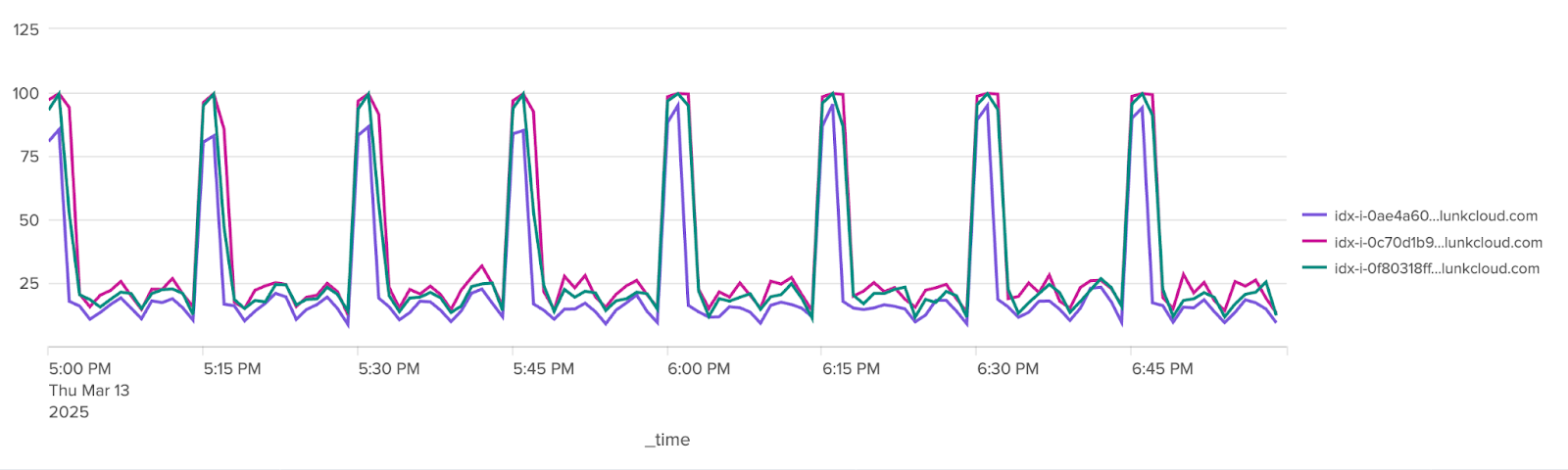
An increase of 16 searches per hour (less than 1%) can be the difference between no skipped searches and several, as shown in the chart below.

The key to a stable Splunk platform system is sizing the deployment for your maximum search concurrency. Ideally, search load can be smoothed to almost flat, and the average search concurrency and 90th percentile search concurrency will be close to each other.
You can add an overlay to your search concurrency chart in PerfInsights showing your single indexer CPU count. Keep your search concurrency below that line for best performance.
Search Runtimes
Search runtimes provide an overview of search performance. Generally, you want search run times to be as small as possible. Long ad hoc searches are what users will likely notice most. Ask yourself how long you’d be willing to wait for a search to return (for example, maximum 60s), and try to keep your searches under that value. This might mean reducing the time period over which your searches run, improving the search SPL using more efficient search commands, or using base searches or job loading in dashboards.
It is normal for DMA and correlation searches to run longer, but they should still be less than one minute on average. Long-running searches risk running into the time allotted for the next search of their kind, leading to skipped searches. Disable any unnecessary and unused DMAs and correlation searches.
Watch out for searches that are getting longer over time. At first glance, the runtime of a search over time might appear flat. Adjust the timeline and chart scale to confirm this. Searches that increase in runtime over time are likely scanning over all time. This can eventually lead to exhausted resources or search timeouts.
Over one hour, with the chart scaling to 100 seconds, all searches look stable, as shown in the chart below.

Over one day, with the chart limited to 40 seconds, one search shows a potential problem, as shown in the chart below.

Search Counts
Search counts provide a quick view of the trend in the currently selected time span compared with the previous span. This can tell you if recent changes to search load have taken effect. You should look for unexpected increases or decreases in search load from the previous period.
Skipped and Failed Searches
Skipped and failed search charts provide a view into system stability. While there are several reasons for failures, both can indicate performance issues.
You should check to see if any skipped or failed searches correlate with excess search concurrency. If they do, address that problem first; you might find this problem goes away. If search concurrency is not an issue, check search runtimes and failure causes for scheduled searches, especially for DMA and correlation searches. It could be that searches are skipping because they are taking too long and overlapping the next scheduled run time.
Search Counts and Runtimes per Search Head
Breaking out search metrics by search head allows you to see if any search head is experiencing a problem. Depending on your configuration, in clustered search head environments, you might see one search head (the captain) with lower search volume than the others. This is normal. In any other case, a search head expected to be a peer of the others should be processing nearly the same amount of load.
Ideally, all things being equal and ignoring the search head cluster captain, search load should be evenly distributed across all search heads.
It is normal for the search captain to differ in load, but the other search heads should be roughly equal.
If a search head is processing a very different amount of load than its peers, as shown in the chart below, configuration settings might be controlling that. Compare the server.conf values for the search heads to ensure you have the correct rules.

Search Metrics
These metrics help you identify slow and inefficient searches and can provide clues on how to improve them. Search efficiency is a topic too extensive for this document, but when you find searches that are taking a long time or using a lot of system resources, use other Splunk platform resources to improve them. Find more information in Learn SPL command types: Efficient search execution order and how to investigate them and Optimizing search.
Search Runtime Trend (DMA, correlation, saved, and ad hoc searches)
This chart shows the top 10 most expensive searches (in terms of time) and how their runtimes vary over time. These are the searches that will have the most impact when you aim to improve system efficiency.
You should look for any search times that are increasing over time. This could indicate that resources are becoming exhausted, search concurrency is too high, or searches are querying over all time.
A small percentage increase in search counts, at the wrong time, can lead to a large increase in runtimes. In the chart shown below, a 1% increase in search load led to a 15% increase in runtimes.

Search Performance
The search performance table allows you to compare search time averages and extremes. The table also shows scan counts and results counts.
The closer the runtime extremes are to the averages, the better. Large gaps can indicate potential performance problems. Look for times when searches were running longer and compare them with other system behaviors at that time. High scan counts, especially with low event counts, can indicate inefficiencies in your searches. When you see searches with high scan counts, try to lower them by adding more filters (particularly indexed fields) and tightening time spans where possible.
If your event or result counts are unexpectedly low, you might be hitting configuration limits. Limits exist for saved searches, subsearches, and commands like join or top. To configure limits, edit the advanced search properties or create local *.conf files to override defaults.
Find more information in the Admin Manual on limits.conf and savedsearches.conf.
Search Resource Usage (DMA, correlation, saved, and ad hoc searches)
Search CPU and memory usage charts show which searches are consuming the most resources. Since all searches compete for the same resources, anything you can do to reduce resource usage positively affects the system as a whole.
For the most expensive searches, in terms of CPU and memory, look for efficiencies. For example, ensure indexed fields use the index equality operator (::), or avoid inefficient commands like join.
Searches consuming a lot of resources, like those shown in the table below, are good candidates for optimization.

Find more information in Splunk Help on Using summary indexing and Troubleshooting high memory usage.
Search Skip/Fail Rate/Details (DMA, correlation, and saved searches)
Skipped searches are never a good sign. Ideally, the skipped search rate should be zero. For any search type with a non-zero skip/fail rate, check the details to see the reason for the failure.
Too much search concurrency of one type of search, as shown in the table below, can cause other types to fail.

If you see that the maximum concurrent instances of that search have been exceeded, this usually indicates that the previous search is running too long and overlapping the scheduled time for the next search. You can make the search more efficient or, if your searches allow it, reduce the time range of the search or increase the time between scheduled searches.
If you see that the maximum concurrent searches for the cluster have been reached, you are likely experiencing other resource issues too. You can add admission rules or user limits on concurrency to avoid this error, but remember that this will cause more ad hoc searches to fail. A better approach is to try to flatten any search spikes by spreading scheduled searches out more. You might also need to consider that your system is undersized for the amount of search load you are generating.
Long-Running Searches (saved and ad hoc searches)
The Long-Running Search table provides insight into which searches could be causing performance issues on the system. It is not uncommon to have searches that take several minutes to complete, such as those covering large time ranges. Searches of that nature, while sometimes necessary, can negatively affect the system as a whole, as they consume resources and reduce capacity for other concurrent searches.
If you see a long-running search that is repeated frequently like the one in the table below, you can optimize the SPL, or run it less frequently or over a shorter time span.

If you see a search that has been running for an unexpectedly long time (for example, hours or days), check to ensure that your search limits and timeouts are being enforced. If possible, modify the SPL to avoid runaway searches in the future.
Frequently Run Searches (ad hoc searches)
Frequently run searches are a good area for optimization. Because these are ad hoc searches, you might not be able to change the SPL, but you can change how users access that data.
If you see expensive and frequently run ad hoc searches, consider creating a saved search with a macro to allow users to access the data without having to run the search themselves.
Resource Monitoring
Search Head CPU
Search head CPU is not often a problem area. Most of the heavy lifting in search is done by the indexers. The search heads are responsible for non-streaming and non-distributable streaming commands but often work on much smaller, filtered datasets
If you see high CPU usage on search heads, see if you can restructure your searches to filter out more data and move distributable streaming commands ahead of any non-streaming or non-distributable commands. Search optimization is a large topic and can take time to master. Generally, you should follow these guidelines:
- Decrease time ranges.
- Use only necessary indexes.
- Filter out as much data as possible before non-streaming or transforming operations.
- Filter on indexed fields and use the
::operator. - Use the
TERM()operator where possible for text searches. - Use
tstatsinstead ofstatsif you don’t need the raw data.
Find more information in Learn SPL command types: Efficient search execution order and how to investigate them, Optimizing search, and Use CASE() and TERM() to match phrases.
Search Head Memory
Search head memory grows as search queues fill and with searches that return many results for non-streaming processing. Job retention times also affect search head memory.
Search head memory growth can indicate a potential problem and is often a symptom of high search concurrency. When searches are completed and their job lifetime has elapsed, memory is released. If memory is growing, then either search concurrency is increasing, or current searches are returning more results than usual.
If you see search head memory growth, try to restructure searches to do more filtering and aggregation on the indexers. You might also want to consider reducing the default job retention settings to allow memory to be freed sooner. As always, try to reduce the amount of concurrent search spikes.
The Key/Value Store is a possible exception to increasing memory concerns. For performance reasons, the KVStore is configured to use a large percentage of system memory. It is normal to see that grow for days to weeks after starting a system. Check that memory use is tapering and eventually plateaus.
Search Head CPU and Memory By Process
By looking at the per-process values for CPU and memory, you can narrow down root causes. When investigating an issue, examining the resource usage for each process can show you what types of searches are problematic.
In a stable system, you should expect that CPU and memory are also stable. One exception would be when a system has recently started or undergone a major change; in those cases, you might expect to see either a step (up or down) in the graphs, or a gradual increase in KV Store memory.
An increase in KV Store memory might be caused by caches continuing to fill. The database that backs the KV Store is allowed to use a large amount of system memory. It is not uncommon for this memory to grow for days or even weeks after a system restart. If memory grows beyond 20% of existing RAM, monitor it more closely. You might have some lookups that are growing quickly in an unbounded way.
Rolling Restarts
Rolling restarts tell you when your system was intentionally restarted. System behaviors after a restart do not reflect the steady state, so knowing when a restart happened allows you to formulate more informed explanations for observed behaviors.
You can look for a single bar that will appear on this chart when the search heads were intentionally restarted.
Running Search Heads
Sometimes system behavior might resemble behavior after a restart, even if no restart occurred. The running search heads chart looks for gaps in search head logs that might indicate an unexpected search head restart.
The chart should remain steady, showing the total count of search heads in the cluster. Any dip below that value might indicate a search head crash. It is possible, though rare, that this chart gives false positives showing a dip even when all servers were running. Use this chart to confirm suspicions of search head crashes.
Indexer CPU
Searches are split across all indexers. If indexes are well balanced, each part of the search will complete in a similar amount of time. While processing a single search part, the indexer dedicates one CPU fully to that task.
During times of high search concurrency, well-balanced indexers will all be running at or near 100% CPU. Your goal is to minimize the time spent in this state to allow more searches to run, thus increasing search throughput. Minimizing time spent on the indexers involves reducing the time range over which the search runs and using as many indexed fields as possible for filtering. Ensure your searches do not query for excess data by searching beyond the range you need.
Spikes in CPU usage could indicate too many scheduled searches starting at the same time (for example, scheduled searches running at the top of the hour). If searches do not need to start at a particular time, try to spread their start times out.
Searches that run on the same schedule can cause CPU spikes, as shown in the chart below, where a small amount of extra load can cause significant increases in search times and lower success rates.

If any indexer differs drastically in CPU usage, you might have unbalanced indexes. Ensure that your forwarders are sending data to all indexers instead of targeting a particular indexer, which means do not use IP addresses for indexers in your forwarders. You might also consider performing a data rebalance, but be aware that this is a lengthy process.
Indexer Memory
Indexer memory is directly related to the combined ingest and search load.
If indexer memory is nearing its limits, ensure that you need (or might need in the future) all the data you are ingesting. Reduce the data range of your searches and use more filters when possible. Also consider an instance type with more RAM.
Indexer CPU and Memory By Process
By looking at the per-process values for CPU and memory, you can narrow down root causes. When investigating an issue, examining the resource usage for each process can show you what types of searches are problematic.
In a stable system, you should expect that CPU and memory are also stable. If CPU or memory are gradually increasing, your searches might be scanning more data over time. If you don’t need it, try changing searches over "all time" to a fixed time period instead.
User Limits
The user limits page allows you to see values that are often quota-restricted, either system-wide or per user. Sometimes users will experience failures and not know why, or possibly even be unaware of a failure at all. This can often be the result of a quota limit causing a silent failure behind the scenes.
Match user usage against user quotas to see if any quotas are being exceeded. Adjust quotas if necessary, or consider running saved searches under a different account and giving users access to the data via a dashboard or consolidated view.
You can modify the chart SPL to include actual quotas as an overlay.
Splunk Features
Bundle Replication Size/Time
The charts in the Bundle Replication section show how knowledge objects are transferred between search peers. Replication times are usually fast (milliseconds), but an occasional replication taking hundreds of milliseconds is not uncommon. Changing lookups, modifying configurations, or installing apps will trigger longer replications.
Stability is key here. If replication times or bundle sizes are increasing, check to ensure your lookups are not growing unexpectedly. While lookups can be dynamic, be careful not to allow unlimited growth. For example, if you add 20 bytes each to 10 fields in a lookup four times an hour, after a year, you will be replicating over 7MB every 15 minutes for this lookup alone. While 7MB can replicate quickly, it increases your overall replication times, and during peak times, missed replications can cause other usability issues.
Modifying lookups with tens of thousands of entries can cause bundle replication sizes to balloon from hundreds of bytes to megabytes, as shown in the chart below. Try to keep lookups as small and as static as possible.

Increased bundle replication size leads to longer replication times, as shown in the chart below. They can also cause increased data transfer costs.

Erratic bundle replication times could indicate network saturation, especially if many search heads are involved (since each bundle needs to be replicated to every search peer).
SmartStore Performance
If using SmartStore, these values show your data transfer rates and warm bucket eviction rates.
Slow data transfer speeds will affect performance. Work with your traffic engineers to ensure data transfer is configured optimally. Slow eviction speeds might indicate disk resource contention on the local disk.
Cache Hit Rates
A high cache hit ratio means that you aren’t having to fetch data from the SmartStore very often.
- If you see a large cache hit ratio, your performance is likely very good, but you might be putting strain on local resources. For more information on tuning, see Set cache retention periods based on data recency.
- If you see a low cache hit ratio, you are likely evicting caches too frequently. For more information on tuning, see Set the cache eviction policy.
Bucket/Data Model Statistics
Bucket and data model statistics show your upload, download, eviction, and removal rates over time.
Upload and removal charts primarily relate to your ingest rate and retention settings. Pay attention to download and eviction rates. If those are too high, you might be searching back over too large a date range, so adjust your searches to look back over a smaller range, or increase your cache limits. If they are low, you might be using more local storage than intended and you should decrease your cache limits.
Assets and Identities Statistics
The assets and identities section shows the size of those lookups.
Large lookups can cause several performance issues, including slow searches and slow bundle replication. While support for these lookups exceeds hundreds of thousands of entries, if lookups start exceeding 50K entries, consider separating them into smaller ones if it makes sense.
Notable Events
Generating and processing notable events triggers many actions behind the scenes. An upward trend in notables can lead to performance issues.
Unless there is an active incident, correlation searches should be tuned so that notables remain steady over time. If there is an upward trend, or you suspect notables are too high, use the table to determine which correlation searches might need higher thresholds.
Environment Diagnose
Log Trends Overview, Distribution, and Top 100
Log trends are a good indication of potential performance issues, even if the logged event itself has nothing to do with performance.
An upward trend in warning and error logging clearly indicates a problem. Events that cause errors and warnings can often come with retry logic that consumes system resources. You should strive to eliminate all errors and as many warnings as possible. While zero is unrealistic, the goal should be as few as possible. Focus on repeated errors that occur in close proximity, as these are likely retries.