

Applying useful SOAR playbook design features
Whether you are new to creating SOAR playbooks or have been designing them for years, there is always something new to learn. This article provides quick tips from SOAR experts in the field to make your playbook design process easier, simplify troubleshooting, avoid common pitfalls, and improve the overall effectiveness of your security automations.
This article assumes that you already know how to write SOAR playbooks. If not, see Create playbooks in Splunk SOAR, and then come back to this article.
SOAR playbook quick tips
Each tip below includes an overview and screenshot to help you understand key aspects of SOAR playbook development. Use them individually or combine them to improve your playbook development and automation outcomes.
Drop None
The Drop None toggle is an advanced configuration in a format block. When SOAR processes fields and artifacts, particularly when handing arrays, a null field value will be shown as a 'none' string. Depending on how you've configured the data path, you might get lots of unnecessary 'none'results, which can make troubleshooting difficult or clutter the presentation of important automation results.
For example, artifact:*.cef.url might return 'url, None, None, None, None, None' for however many artifacts you have.
Select Drop None to clean this up.
It is usually advised to select Drop None (which is unchecked by default) for all format blocks unless you explicitly need none results for conditional processing.

Debugging
The utility block has a debug function to pass in up to 10 values. The Playbook Debugger window is used to monitor playbook execution and output as it runs. This is extremely useful when determining how to use the output of a previous block in the next step of the automation.
For example, you've just run an action block to perform a remote search of a Splunk platform instance through SPL and it has returned results, but you don't know how to reference these results to format and output them into the container notes. Selecting an input_x field within the debug block provides a preview of upstream fields; however, there will be many to choose from. Select up to 10 and run the playbook to monitor the output in order to determine the correct field to reference.
Some things to note when using this utility:
- Provide an artifact ID and always set the scope to All Artifacts
- Disconnect downstream blocks while debugging to prevent them running unnecessarily
- Use
phantom.debug()in custom code blocks for even more control
For more information, see Debug playbooks in Splunk SOAR (On-Premises or Cloud).
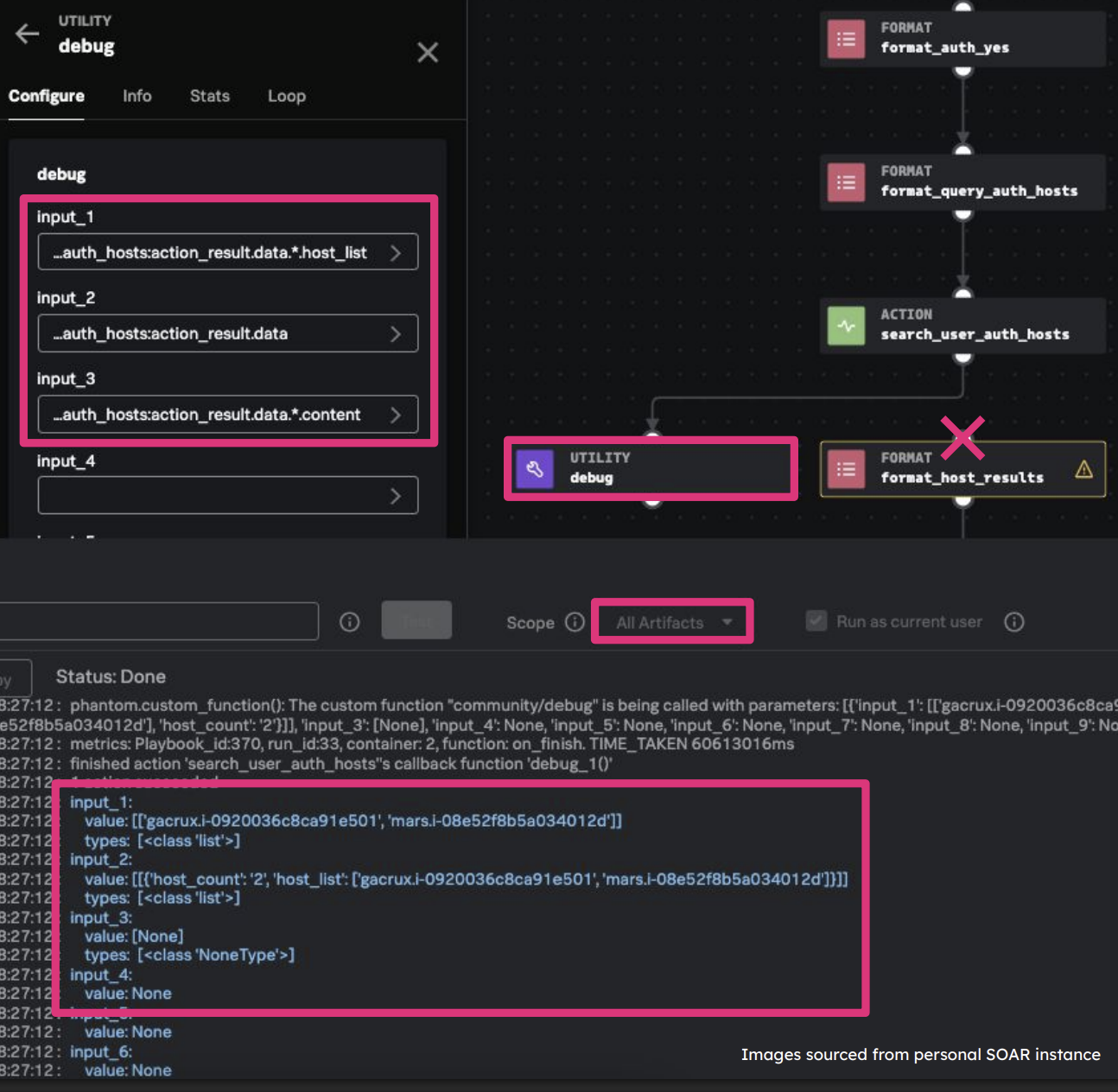
Using the floating debugger
To optimize playbook debugging, keep a floating debugger debug block close to wherever you are actively developing a playbook. In line with good coding practices, this block should have a name, description, and notes. Follow these guidelines when using the floating debugger:
- Connect the utility in-line when running the playbook debugger
- Disconnect downstream blocks to speed up execution
- Add up inputs in bulk to assist with locating the fields relevant to your playbook

Formatting arrays
The format block has built-in markdown for creating headings, tables, and more.
For more information, see Example of defining a template (On-Premises or Cloud).

SOAR notes also support markdown input, allowing for text formatting, notes, tables, and more. You can even insert images into your notes.
There is a tooltip in the playbook editor to help you with markdown, and more information is available in Create, sort, and filter notes in Splunk SOAR (On-Premises or Cloud). Use the note preview feature for real-time testing.

Joining branches
An absolute must-know is how SOAR handles the joining of two branches. When you use the JOIN SETTINGS option in the format block:
- By default, SOAR expects both branches to run and will wait indefinitely. To fix this, deselect required.
- You can also use a join to perform advanced formatting of your content. Configuring two inputs from different branches acts like an OR statement allowing for dynamic results. This prevents you from having to create a separate format block from each input. The playbook pulls in the one that is relevant.

Additional resources
Now that you have an idea of how you can improve your SOAR playbooks, watch the full .conf talks, Practical SOAR examples from the field (2024) and Practical SOAR examples from the field: Part 2 (2025). In these talks, you'll get more detail on these best practices and advice on bringing in more SOAR automation in general to your organization.
You might find these additional resources helpful in implementing the guidance in this article:
- GitHub: MattHyp3 Repository
Debug playbooks in Splunk SOARDebug playbooks in Splunk SOAR