

CTIS Integration - IOC Reporting App Installation & Configuration
Background
For an overview of the CTIS IOC reporting app for Splunk Enterprise Security, refer to the CTIS IOC reporting app documentation and the GitHub repository.
The IOC reporting app has been developed with industry standard open-source OASIS TAXII/STIX libraries and might work with other TAXII/STIX based IOC reporting services, but currently it has only been validated with the ASD/ACSC CTIS service.
Proxy Support
Support for HTTP/HTTPS authenticated/unauthenticated proxies for IOC report submission was introduced with version 1.21.0 of the CTIS reporting app. When a proxy configuration is present and enabled in the IOC reporting app configuration page, IOC report submissions for all configured TAXII configurations from the IOC reporting App will be via the configured/enabled proxy. The proxy configuration in the IOC reporting app has no relationship with the proxy configuration for IOC collection ingestion via TIF. That is configured separately directly in the ES TIF settings.

Installation
The CTIS TAXII IOC reporting app is currently released as an open-source package that can be downloaded from the Splunk GitHub repository and installed on Splunk Cloud Platform or Splunk Enterprise with Splunk Enterprise Security 7.3 and later. The repository can be accessed at ctis-taxii-splunk-app.
To download the latest version of the app, click the link on the right-hand side of the main repository page for Releases.

Then click the App Package under the desired version to download the App installer.

To install it, use the Manage Apps menu to install an app from a file on your Splunk Enterprise Security search head, remembering to choose the option to upgrade if there is an older version already installed. For Splunk Cloud Platform installations, the self-service App install workflow must be used or you can contact support to have the app installed. 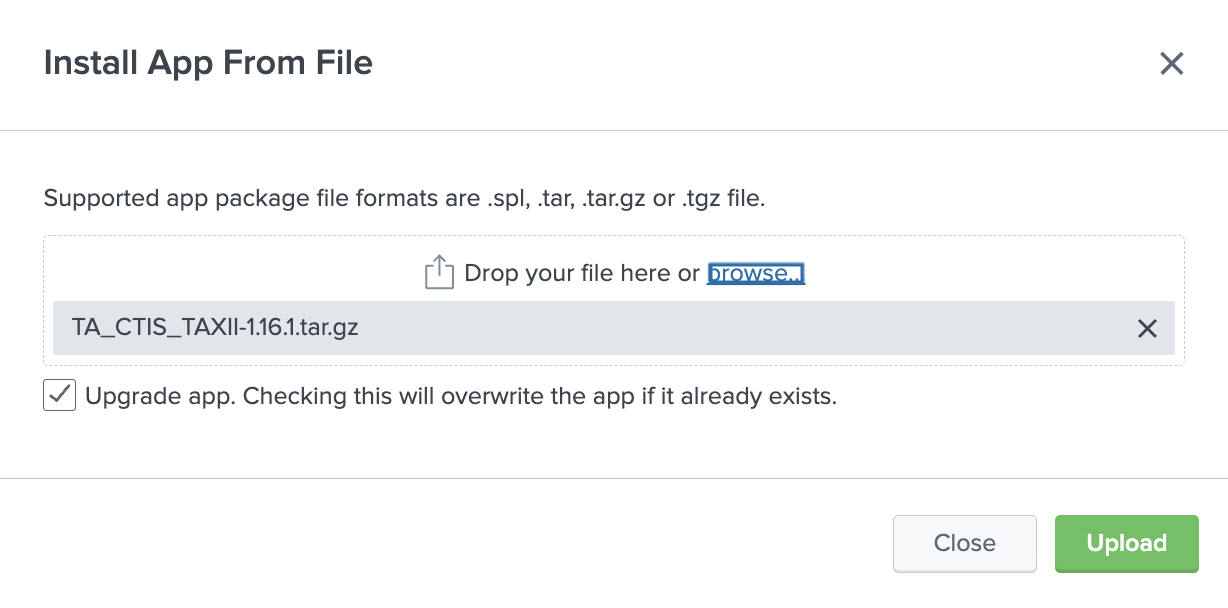
For full details regarding installation of this app, see CTIS TAXII Splunk App Documentation: Installation.
Configuration
Before IOC reports can be created and submitted using the CTIS reporting app, TAXII v2.1 connections must be configured specifying the CTIS TAXII credentials and API root URL to be used for submission of IOC reports. The collection information (Collection ID) will be automatically discovered once the credentials and API root are configured.
After the CTIS app is installed, open the CTIS IOC app from the Splunk Apps menu:
- Select Configuration and click Add on the right to create and save a new connection.
- Enter the details as per the TAXII2.1 credentials from the CTIS portal for your organisation. Credentials are saved in the same secure Splunk credential store, but you should not use the same credential configuration as the feed configuration in TIF.
- Enter the TAXII2 API root and click Add to save the new connection. API root should be in the format of
https://<taxii-server-fqdn>/taxii2/<rootid>. Refer to CTIS connection guide for further details on the TAXII API root.
For full details regarding the configuration of this app, see CTIS TAXII Splunk App Documentation: Configuration.
Create and Submit Reports
After the TAXII connection and credentials are configured, follow these steps to configure, create and submit reports.
- Create an identity: An identity is used to represent either the individual, organisation or group submitting the report and is based on a 128-bit UUID generated when the identity is created. Currently, this UUID is generated when the identity is configured; however, in the future, the UUID might be assigned to specific entities by ASD. Typically, an identity would be created one time but used multiple times for IOC report submissions by specific entities. Identities play no part in authentication or authorization; they only identify who submitted the report. Identities also define default TLP markings and Confidence.

- Create a Grouping: Specific malicious or suspicious activity often consists of multiple IOC artefacts; for example, an IOC report for a single malicious file could include a filename, sha1hash, sha256hash, and md5hash. Additionally, a particular sequence of a specific occurrence of malicious activity could consist of multiple types of IOCs, for example, certificate fingerprints, filenames, hostnames, or URLs. Groupings enable multiple related indicators to be grouped together in a meaningful way as part of a single report.
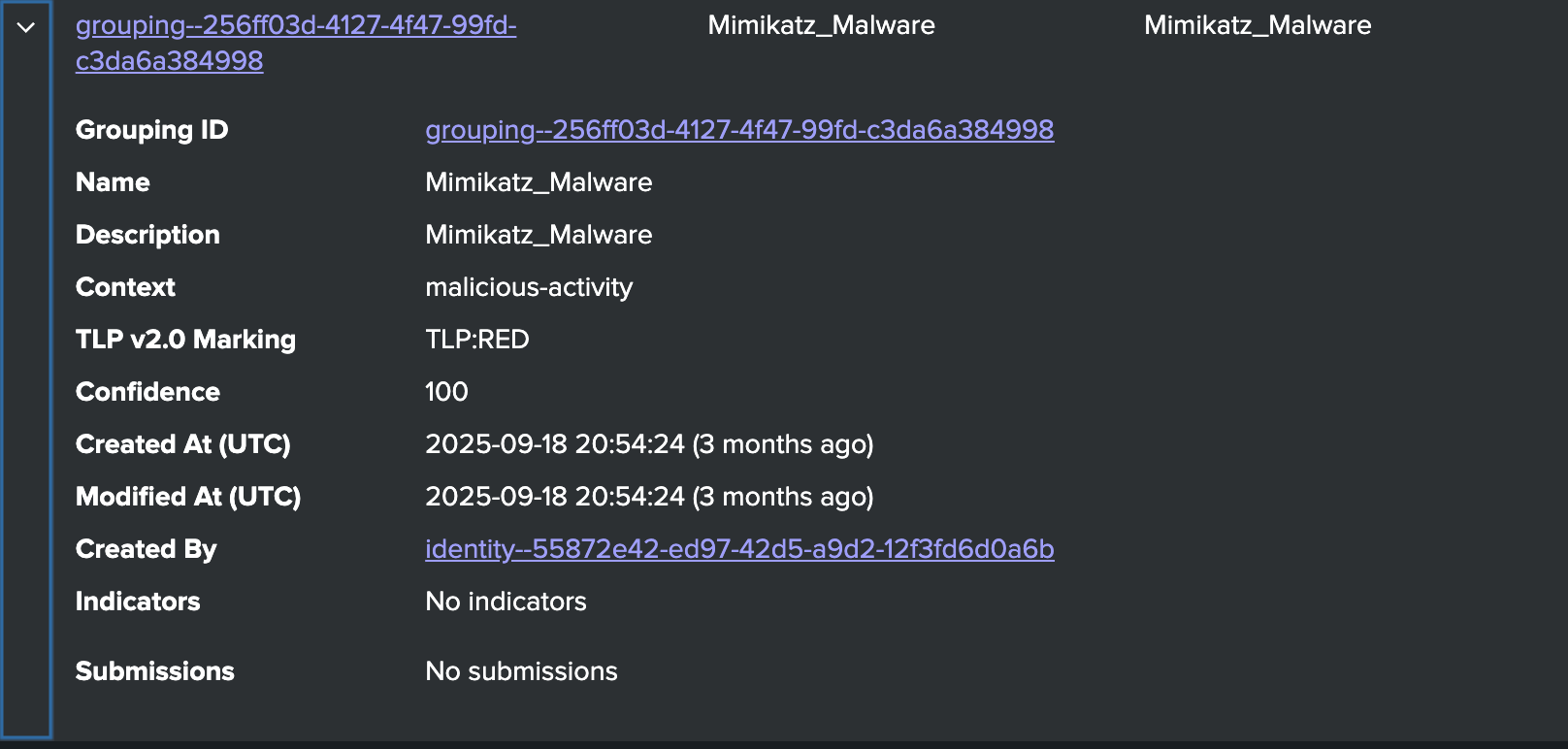
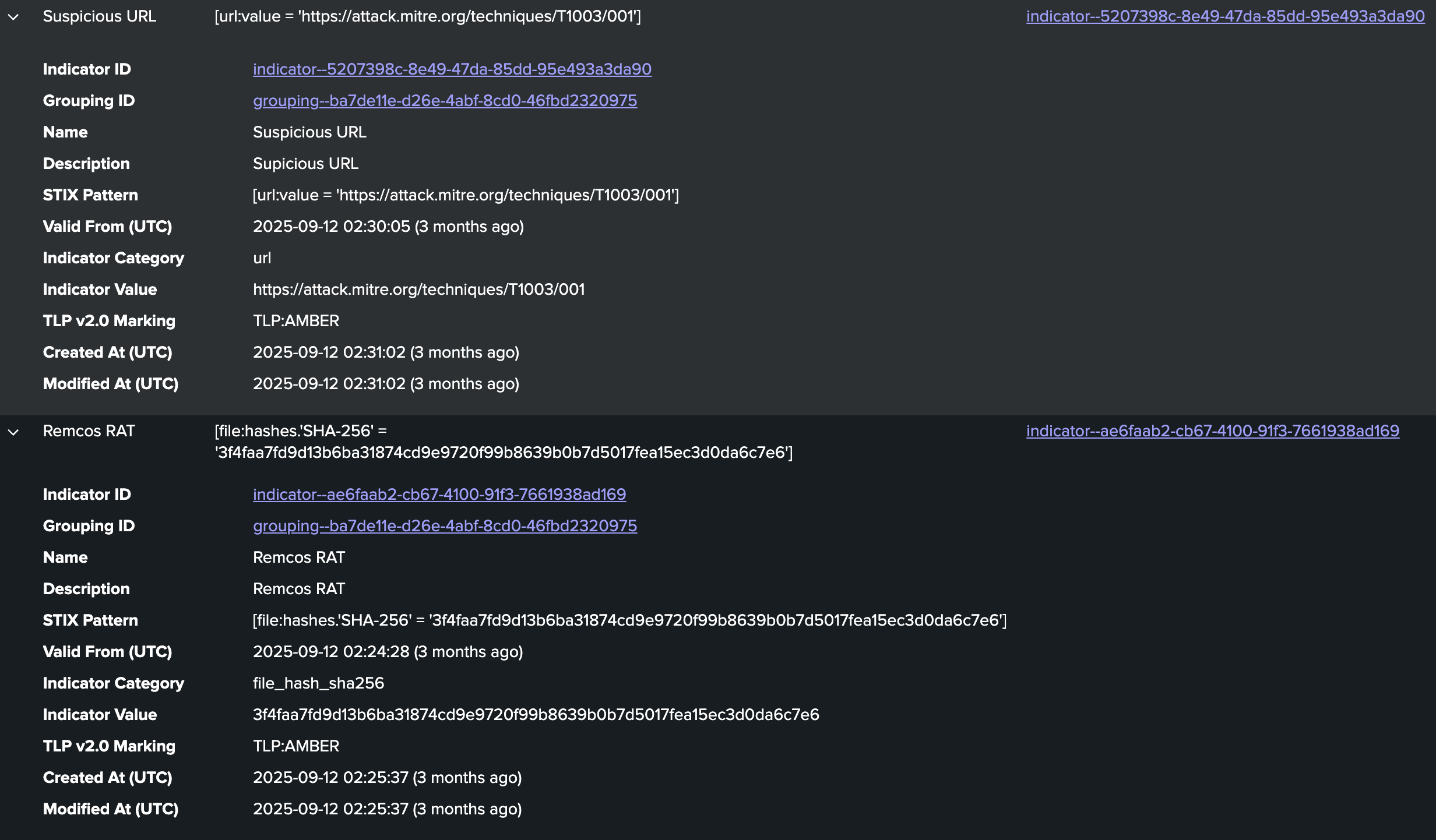
- Create indicators: After the grouping is created, indicators can be created and added to the relevant group. Multiple indicators can be created together but they are added as individual IOCs and associated together via grouping. Clear naming of IOCs will help identify related IOCs, for example, the filename and associated file hashes. The example below shows the IOCs are both associated with the same grouping.
- After all the indicators are created for that specific reporting/grouping, they can be submitted immediately or scheduled for a specific date/time. Submissions can be done from the submissions menu or by selecting the grouping. The collection will automatically be discovered after the TAXII config is selected and a preview of the STIX JSON bundle can be viewed.
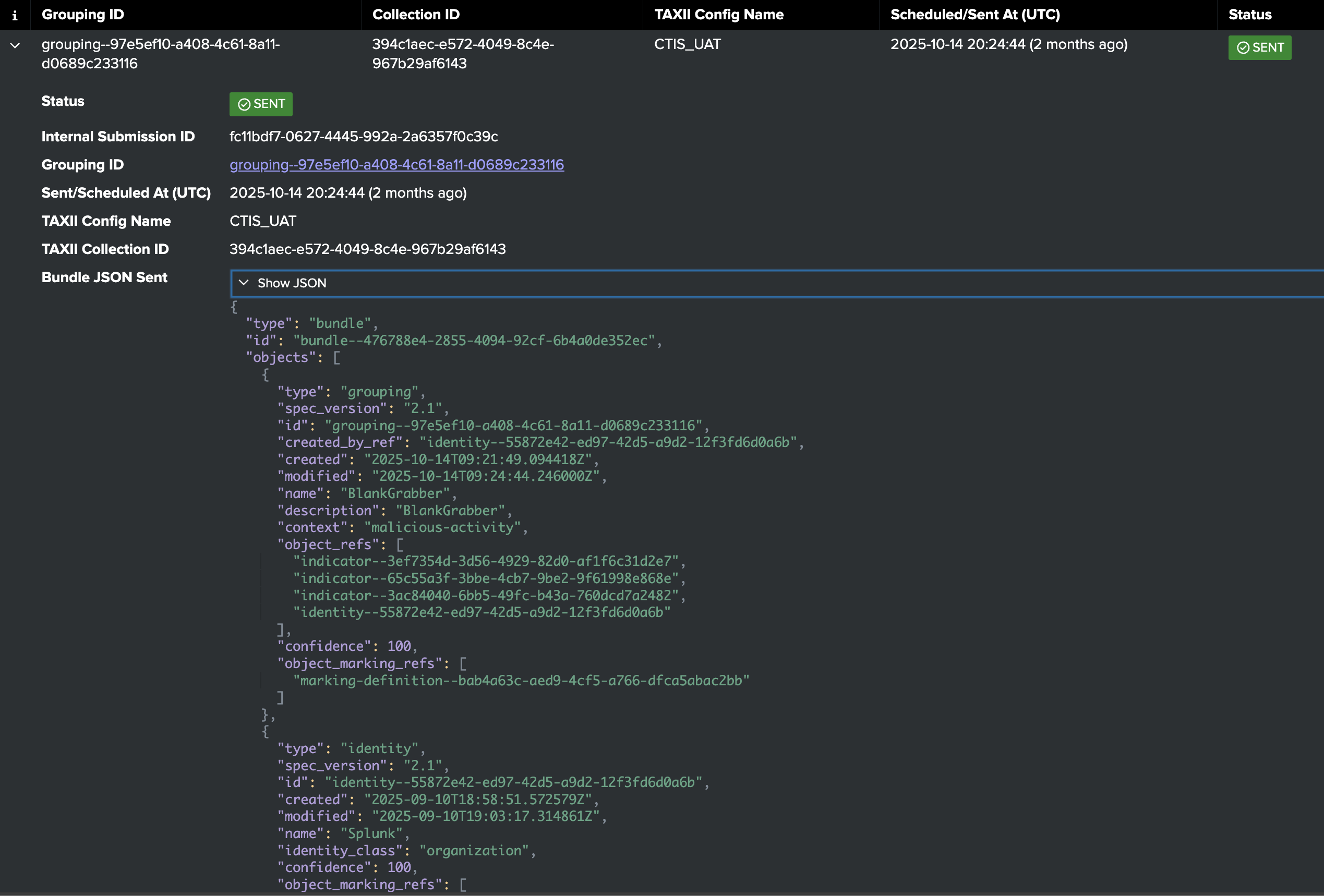
- Submission results are shown after the submission has been processed including JSON output of the TAXII server response.

For complete details on how to use the app to submit IOC reports, see CTIS TAXII Splunk App Documentation: Curating and Sharing CTI.