

Building a SOAR playbook for a user-focused security investigation
When conducting a security investigation into user activities, it is common to perform a lot of Splunk searches to review the behavior of the user across a number of different focus areas. This can be a very time consuming activity and is prone to human error as each search is invoked manually.
However, through the integration of Splunk SOAR and Splunk Enterprise Security, it is possible to automate the bulk of those searches in an efficient and consistent manner. With a well-designed playbook, you can decrease your Mean Time To Detect (MTTD) significantly and focus on responding to the incident.
This article assumes that you already know how to write SOAR playbooks. If not, see Create playbooks in Splunk SOAR, and then come back to this article.
How to use Splunk software for this use case
The following is a blueprint that can be used to approach automated investigations, with this example focused on investigating a system user.
- Define analytical questions normally asked during a user-focused security investigation. For example, Has the user logged in within the last seven days?
- Convert the questions into SPL queries that return a binary result. In this case:
| tstats count from datamodel=Authentication where Authentication.user=”{0}”| eval result = if(count > 0, “1”, “0”)
| fields result - Create a format block that uses this query and passes in the username being investigated. Note that the
| tstatsis omitted as this is added in the next block. - Create an action block that uses the query to perform a search of the Splunk data.
- Create a decision block that takes the result and branches dynamically based on the result.
- Continue adding questions and forks and branches, adding child playbooks as needed.
Example playbook blueprint
Let's dig deeper into the authentication query to understand how to build this type of playbook.
First, create the user authentication search string. This search tells you if the user involved in the investigation was active in the system.
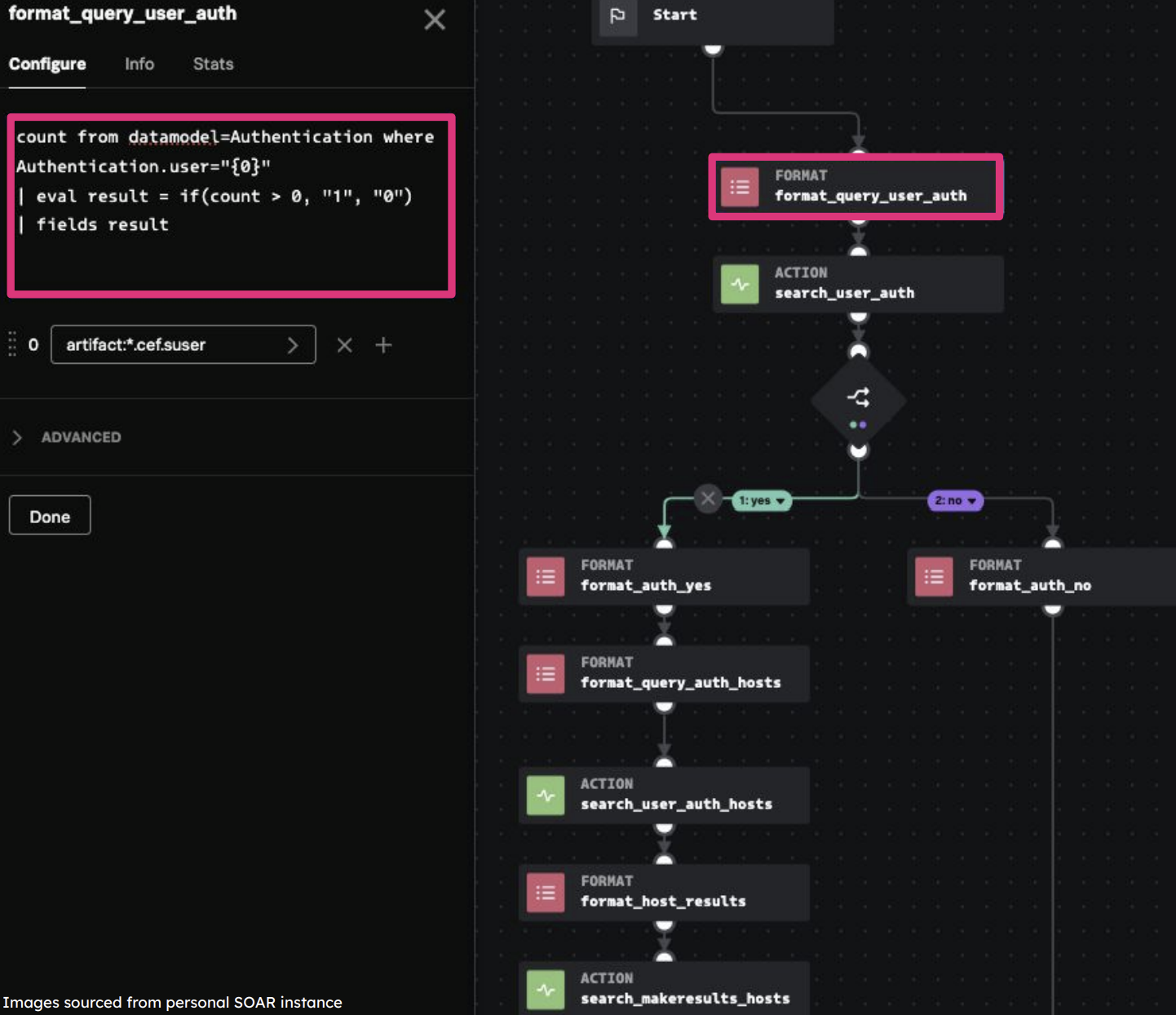
Run the user authentication search. This provides the generating command (tstats) for the format block. You can also set a time frame and additional options.

Use the results of the search to determine if the user has been active. In this case, if the user hasn't been active, then we can stop the investigation and add a note to close it. If the user has been active, you will likely want to look at a lot of different activity the user generated which will lead to additional searches and results.

Regardless of the result, we will add a format block to create content for a summary that will be added to the container for the analyst to review. In this example, we provide the full question as text and the result (Yes) in bold by encapsulating it in double asterisks. Multiple format blocks can be joined together in order to create a fully dynamic incident summary.

The following screenshot shows two example summaries generated across two users. The first has been active, which then triggers additional searches to be run automatically by SOAR. The second user is inactive so the playbook changes path and does not run unnecessary searches.

Additional resources
This article is one of many in a series on using SOAR automation to improve your SOC processes. Check out the additional playbook guidance or some of the links below to continue getting more value out of Splunk SOAR.
- Splunk Lantern Article: Applying useful SOAR playbook design features
- Splunk .Conf: Practical SOAR examples from the field
- Splunk .Conf: Practical SOAR examples from the field: Part 2